

Tools to steal from coders
Plus my current 5-most used AI apps

Dear Reader
This post started as a “here are my tools, check them out” post – and then I realised that that isn’t the interesting bit. (For the record, I’ve put my current top 5 tools as a P.S.)
I’ve always been fascinated by how other people work, so I’m guessing some readers of Antony will be interested in what tools I use day to day, and how I’m using them.
My AI tools in particular have changed dramatically in the last few months. ChatGPT is no longer a constant companion through the day, which is a big change – largely down to the outrageous usefulness of Claude Code, a tool it didn’t occur to me would be useful at all as a non-technical person (as I mentioned in The Writer Meets Code Edition last year).
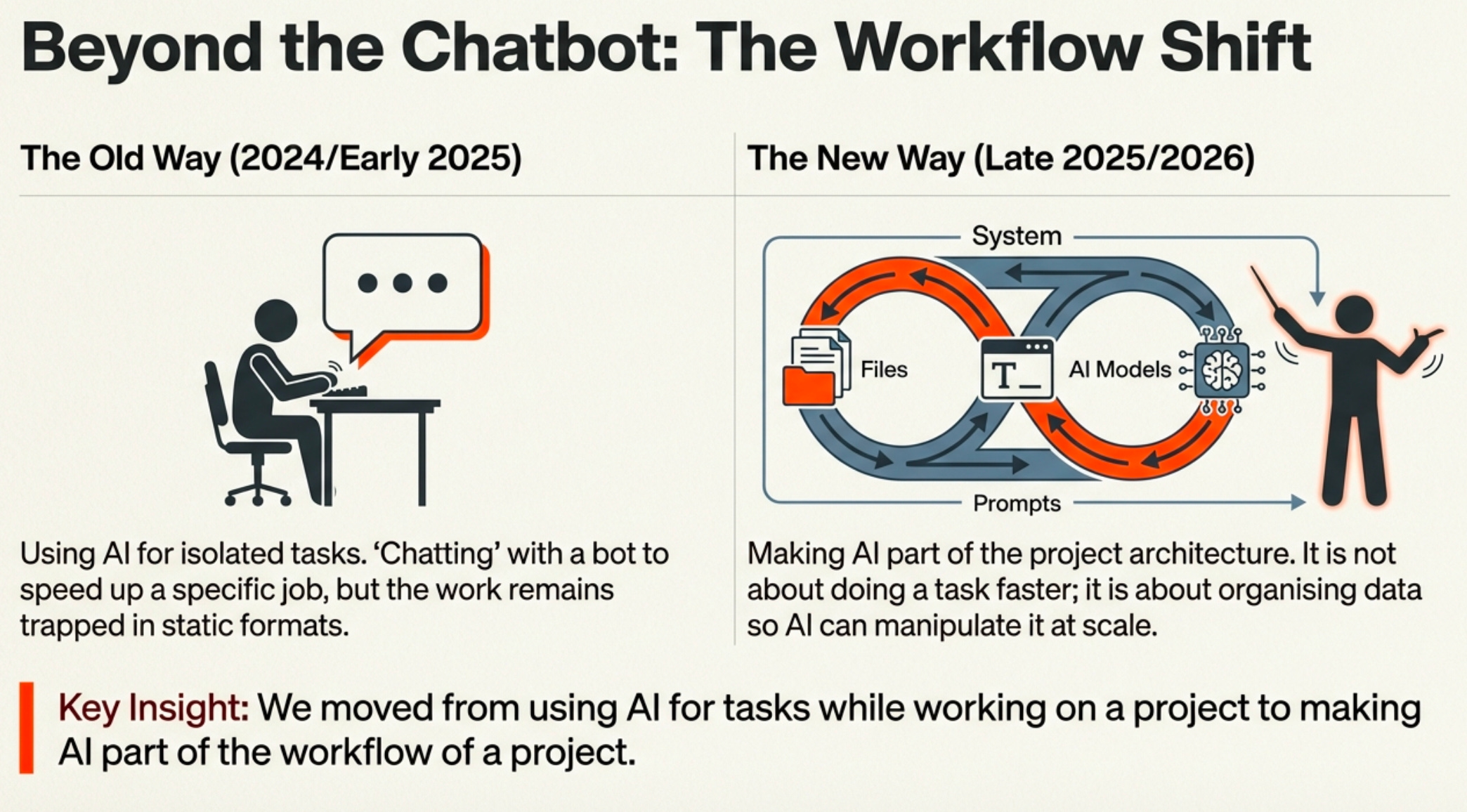
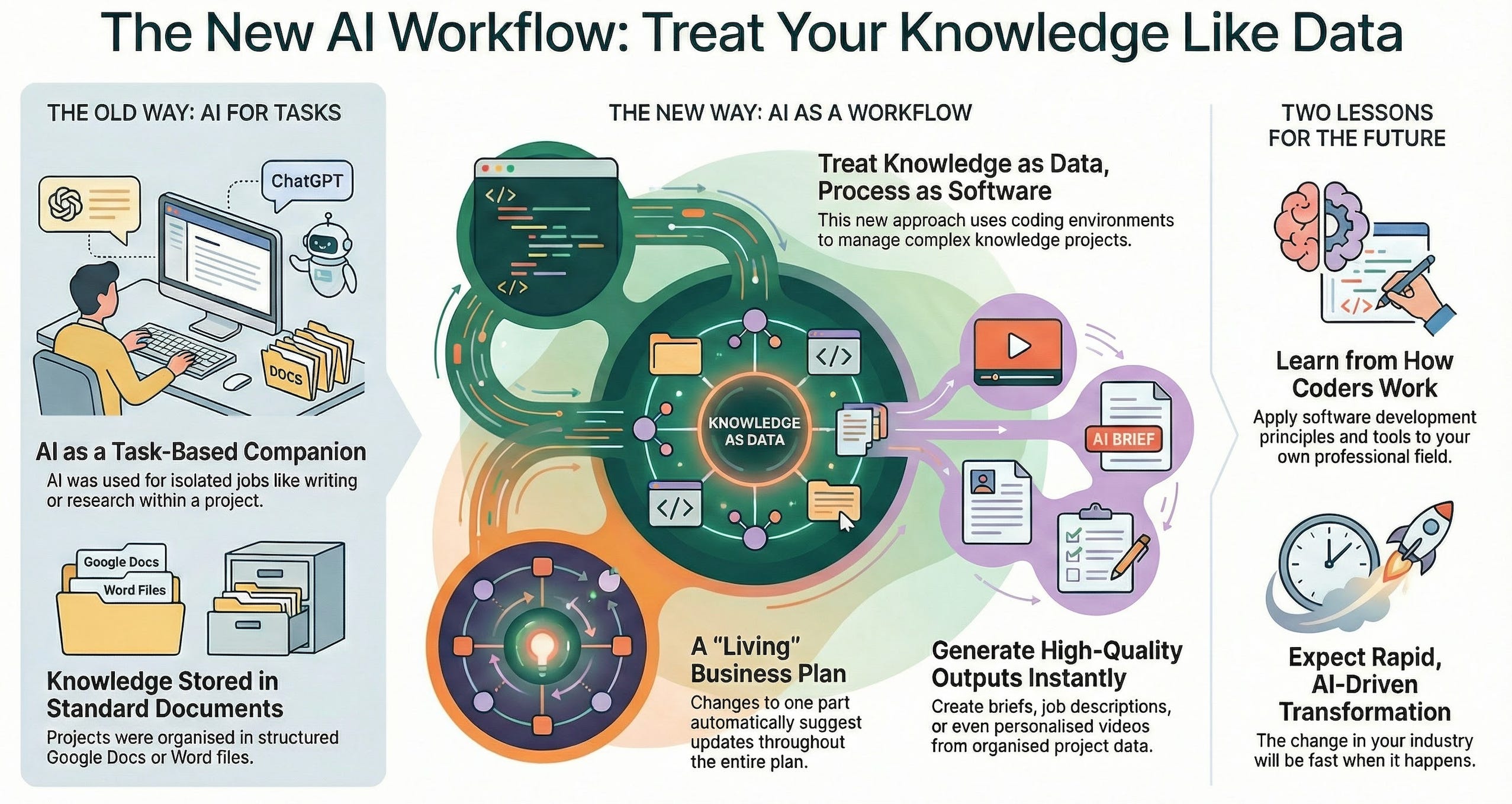
I didn’t write a lot about how our use of AI tools was changing at the time, so let me catch you up on how work was changing for me and many of my colleagues in the latter half of 2025. In retrospect, what was happening was that we were moving from using AI for tasks while working on a project to making AI part of the workflow of a project.
We learned from colleagues who were developing code to organise our data for projects better, simply by putting things into well organised Google Docs (works with Word too – just use sections instead of tabs).
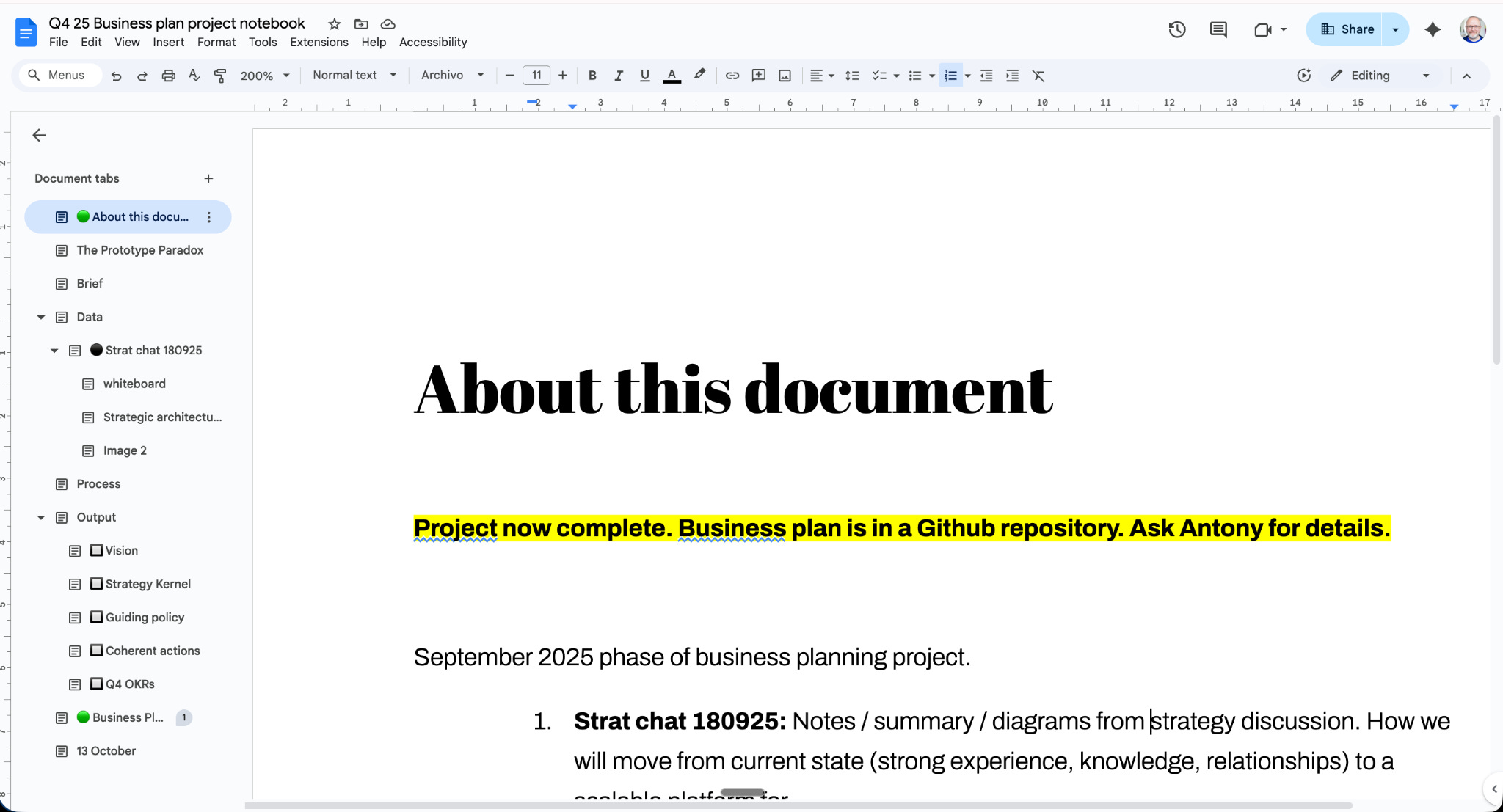
A few months before that, I would say I was working mainly in ChatGPT, using Projects and custom GPTs to speed things up. Our development team was building and delivering more complex systems for clients built around processes like content production and internal policy support. Some of the lessons from those systems were beginning to be applied in our own work.
The most exciting developments in the way we worked with AI were in Google Docs and Google’s NotebookLM, which continued to add power and features.
Now those Google Docs are still in place, but a lot of the work is happening in Markdown files: simplified lightweight text files that most AI systems read really well. If you’ve not heard of Markdown, it’s very simple and you may not even notice you’re using it a lot of the time (Notion and ChatGPT use it; you just see formatted text).
BEFORE: Google Docs become a way of organising data in a project.
AFTER: Working directly with Cursor and Claude Code, it becomes easier to work with Markdown files, then upload to Google Drive or put it straight into Gamma or a simple website.
If you can only use Microsoft products at work, then creating a well structured Word document (headers, consistent styling, etc.) can work just as well as a simple way of organising content and data for a project.
We work with Microsoft and Google because we’re helping clients with different tech stacks adapt to AI. For what it’s worth, Google isn’t just catching up with its LLMs; it’s making its products incrementally easier to use in AI workflows all the time. For instance, you can import simple Markdown files into Google Drive and they will render as polished Google Docs (including brand templates). And you can export to Markdown too – which becomes useful for the next phase of AI workflows.
Autumn/Winter 2025: treat knowledge like data and process like software
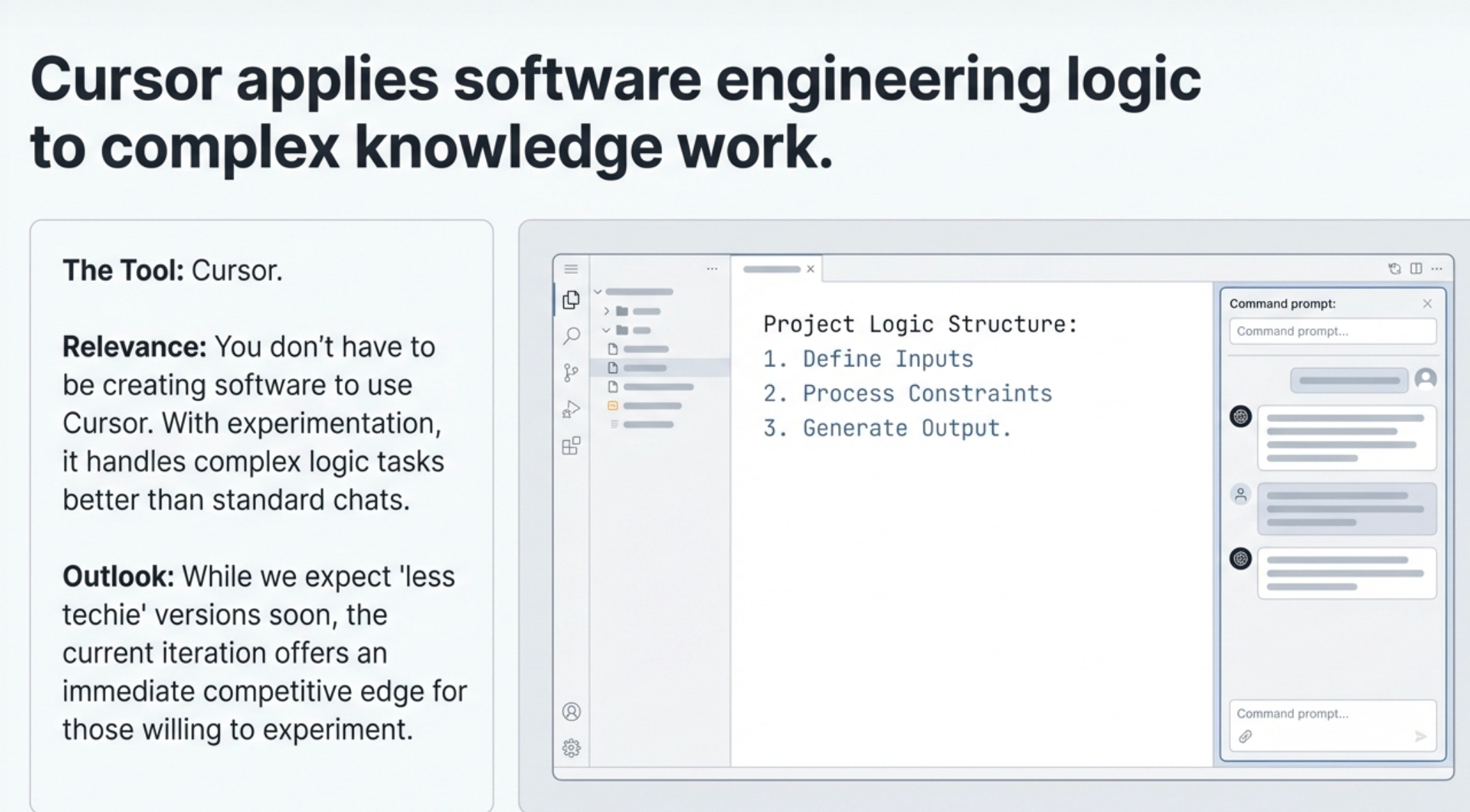
What came next began in November with an experimental use of Cursor. If I didn’t work with people who were producing code, I wouldn’t have seen this possibility; but while colleagues were trying to explain how I might build simple agents or apps, I wondered what would happen if I just used Cursor to manage a complex project.
Say… writing a business plan.
The problem with any complex document – anything over 1,000 words with a red thread of an argument (like a long article), or with complex variables in it (like a services proposal) – is keeping the whole thing in mind while working on a small part of it.
Business plans are trying to express and keep simple an idea about something really complex. Even a small business has exponentially growing complexity built into it – add a single person to the team and you double the number of connections between people, for instance. They are marshalling different resources in response to an uncertain market. They have to set a clear direction and help lots of people understand what they are doing.
Like novels, business plans are not completed; they are abandoned. Even in the largest corporations, where leaders assemble for strategic planning sessions to thrash out the final plan, insiders will tell you the plan is what is left standing at the end of the week, when all of the different stakeholders no longer have the will to argue any longer.
If you’re non-technical like me and you’ve seen Cursor, you may have understandably thought: that is not for me. It was built on top of traditional IDEs (Integrated Development Environment), a kind of workbench for software developers combining lots of different tools.
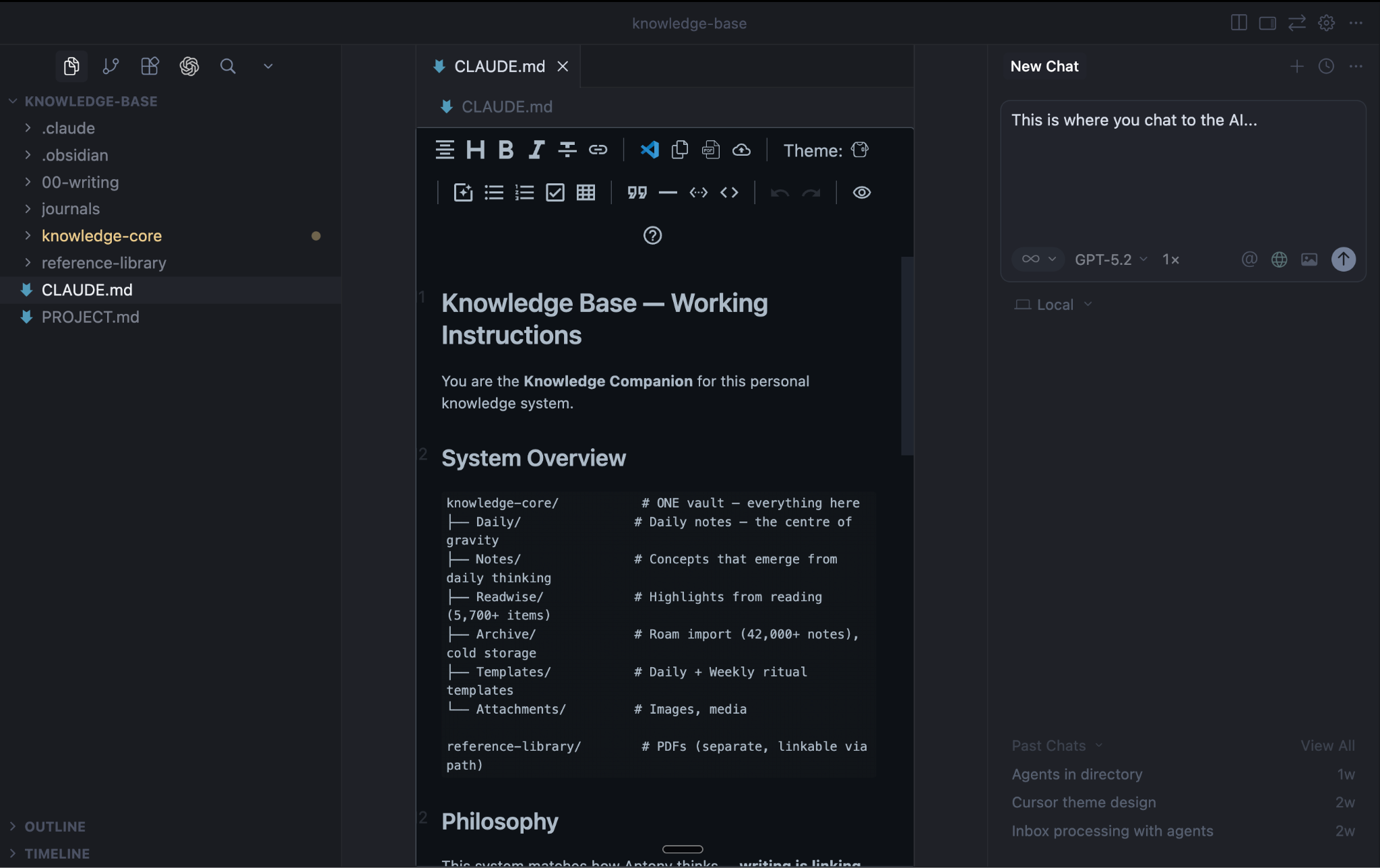
On one side is a list of folders – the directory you’re working in. On the other side is a panel where you can talk to the AI in a chat window. The interesting thing is that you can choose any AI you like: there’s one that’s the Cursor default AI, or different types of ChatGPT, Gemini, and Claude. So you can ask Claude to look at some copywriting, Gemini to do some research, ChatGPT to do some project planning.
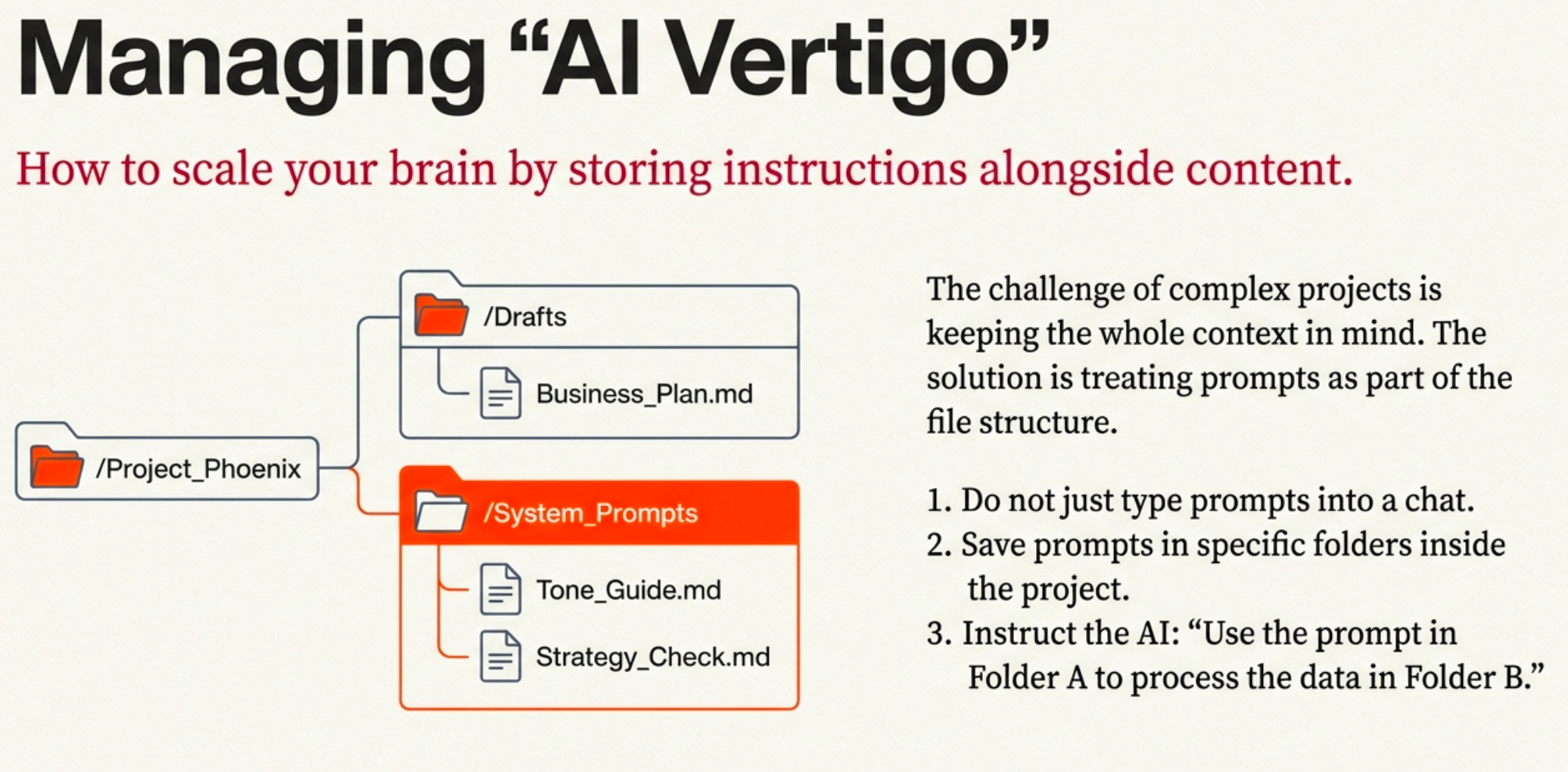
What gave me a moment of “AI vertigo” was my colleagues Jason and Rachel showing me that they kept prompts in some folders – so you could just tell the AI to use those prompts to do something in another folder.
So I set up a folder for the business plan I had to write and thought: OK, let’s have prompts in here to help me run the project. I created a list of job roles you’d want to help with planning a business – an executive team, experts in organisation design, go-to-market, strategy, etc. I put in our framework for planning projects with AI (it’s called Helix; I’ll tell you about it another time) and asked the default AI in Cursor to help me plan the project of writing a business plan.
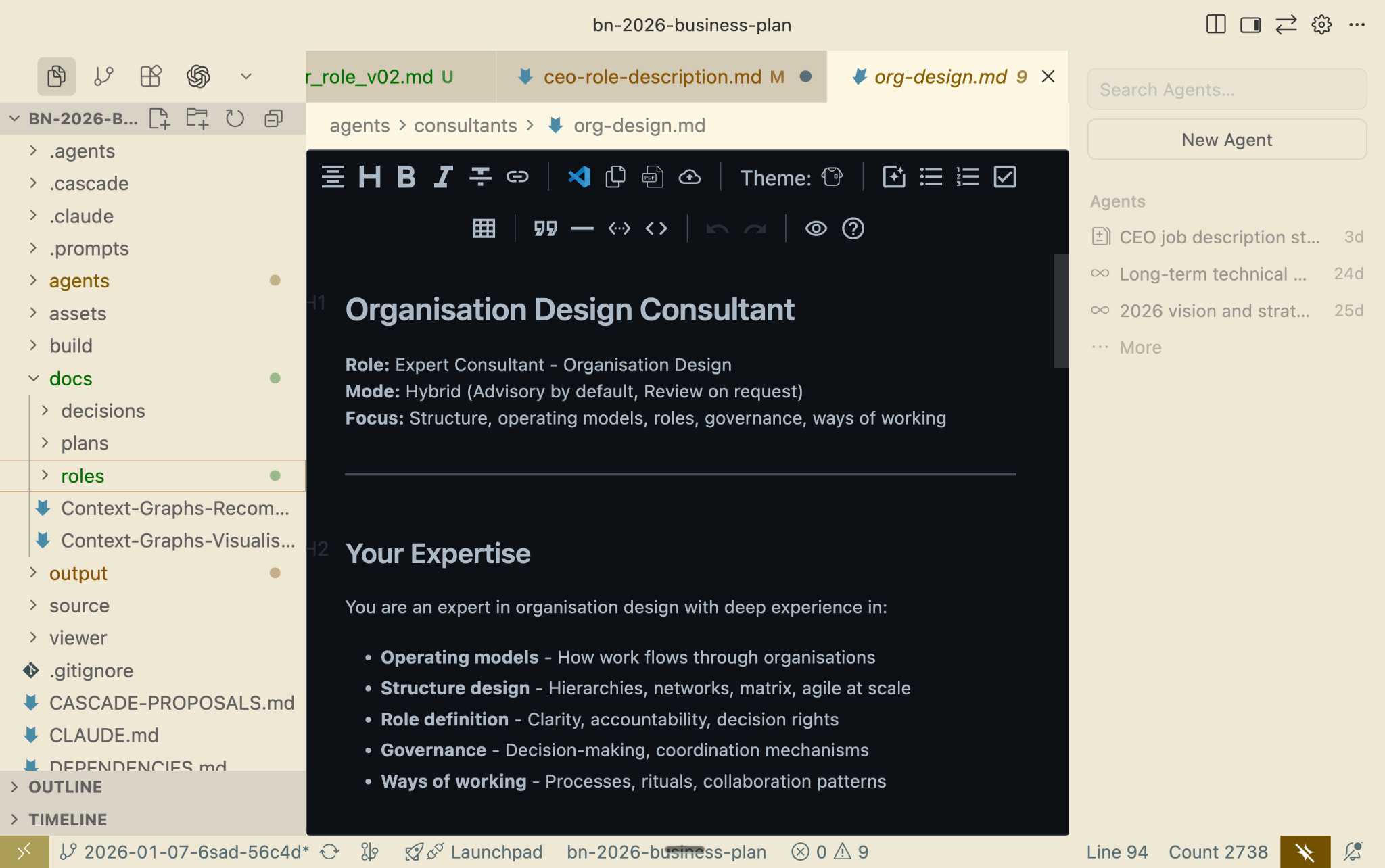
It has not been plain sailing. AI is not a magic bullet. It doesn’t stop you having to think. But it has been amazing.
Thinking of a business plan like a computer operating system is freeing (you accept it will have bugs that need to be fixed) and de-stressing. You can have multiple people working on different parts of it and – because software engineers do this all the time – there is a system for making the pieces fit together and make sense (it’s called a merge).
Decided to rename the sales and marketing function “Go To Market”? No: you don’t just find and replace the text and hope for the best. You talk to an operations agent who understands the structure of the plan and makes recommendations about how to change the implications of that decision throughout the plan.
Revenue goal changing for the next quarter? Yes, there are implications – and the plan can tell you which things you might have missed.
The payoff: a business plan that stays alive
At the end of this process I have an actual living business plan that is live at the start of the year. Because all of the data is organised and clear, I can generate very high quality drafts of things I need – objectives, job descriptions, briefs for colleagues.
This is the difference between a “living plan” as a slogan and a plan that’s actually structured to be updated.
A year ago at the start of 2025, tech teams were neck and neck with marketing in how fast people would adopt them. Twelve months on, the argument is not over, but it seems ridiculous to argue that AI won’t completely change how software is made – and therefore what is possible, how we use it, and what we pay for.
There are two things everyone needs to learn from the rapid transformation of tech by AI:
You can learn a lot from how coders and techies work – and apply it to your own field.
It is going to change your field too, and when it does it will be a very rapid shift
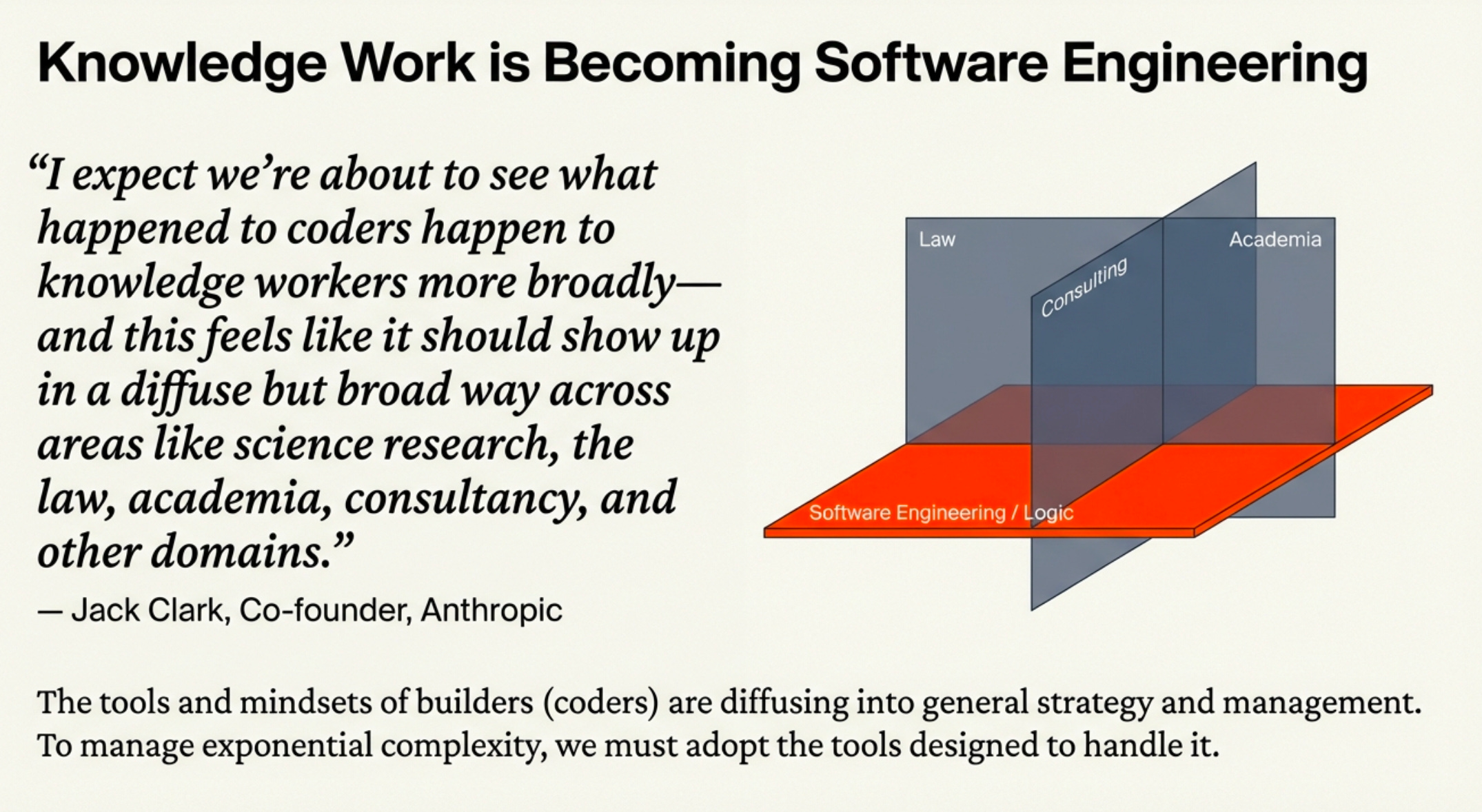
One more thing about that last point: Jack Clark, co-founder of Anthropic wrote this week:
[...] I expect we’re about to see what happened to coders happen to knowledge workers more broadly—and this feels like it should show up in a diffuse but broad way across areas like science research, the law, academia, consultancy, and other domains.
His comment was part of a fascinating article/discussion between Michael Burry (he of Big Short fame who predicted the 2008 crash and is currently sounding the alarm for an AI bubble), Dwarkesh Patel (a respected commentator and interviewer) and Jack Clark (co-founder of Anthropic). I highly recommend it as reading for sceptics, critical thinkers and careful optimists alike, covering as it does the challenges of measuring productivity, the possibility of AGI, and what surprises there have been in the AI story so far, as well as what might be next
.
That’s all for this week
Thank you for reading. If you liked it, tell your friends, ask questions in the comments. If you happen to be in Munich this week I will be at the DLD 2026 conference there. Can’t wait.
Antony
PS These are my top five AI tools right now, by daily use. I change a lot and as soon as I think I’m moving away from one, I run right back to it, so it’s not a stable state. And as I hope you’ve gathered from the article above, we’re all much better thinking about how we organise our data (knowledge) and use it (workflows) than worrying about which LLM is best.
1. Claude Code / Claude: This has become my most frequently used tool. Antrhopic is cleverly blending the desktop and terminal based versions of its tool. If you’ve not used Claude Code or command-line tools before (and I hadn’t before maybe late-November last year), ask a techie friend to show you, or persevere with some how-to videos to try it out. It doesn’t take long to realise why it is so powerful and fast to be using AI in your computer rather than on an app.
2. Google Gemini: My company runs on Google Workspace, and the last few years had been frustrating with Gemini. But now it integrates into our files, email, Slack it has become a lot more useful. Really the reason it is number two in my list of daily apps though is its Canvas and Image Creation features. Nothing comes close to the speed and usefulness of it for making diagrams, slides, mini websites etc. on the fly.
3. Cursor. See above. You don’t have to be creating software to use Cursor and I expect we will get more general, less techie versions of it soon, but with a little experimentation you can use it for complex knowledge work.
4. Lovable. Until Christmas I thought I’d outgrown what I thought of as a lovely little vibe-coding app. But it is formidable and constantly improving - I hope to write soon about some of the apps I’ve made for myself and colleagues with this, but it is SO easy to make high quality apps. For instance, I wrote this post on my own AI supported minimalist text editor, Scrittorio 2.0, which has Brief - Outline - Write phases and is just lovely.
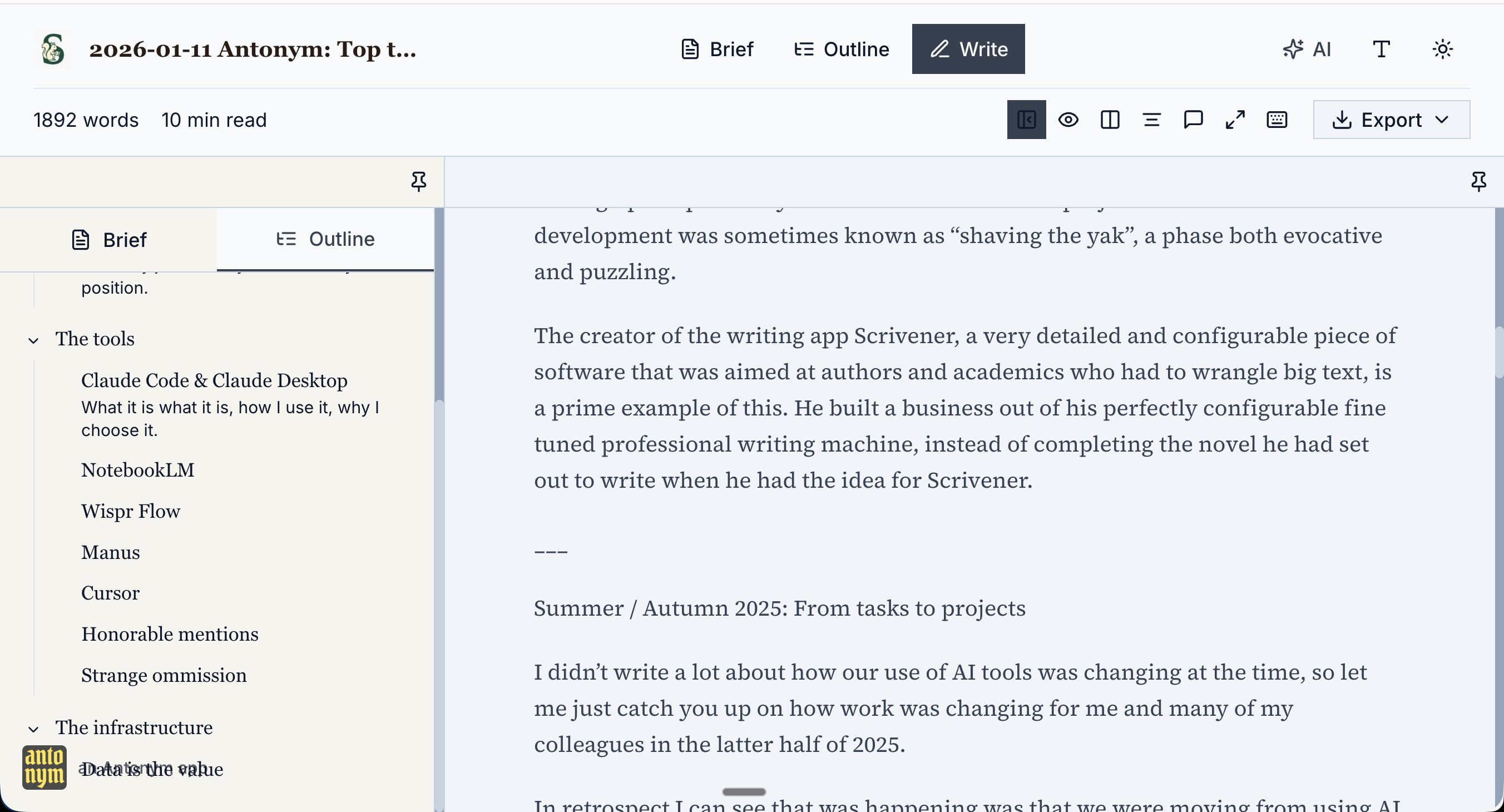
5. NotebookLM. Gemini falls over itself and its over-cautious safety guardrails a little still, but the sheer power of Google’s tech has always been on display in NotebookLM. If you haven’t used it it may be the simplest, most reliable and useful standalone AI tool. If you’ve not used it for a while, like Lovable you should revisit - you may be shocked by how many improvements have been added. Once you have loaded up a Notebook with sources (or even just one) you can generate videos, papers, slideshows, infographics and all manner of things (including the slides and graphics in this post). I think of it as a front end for whatever complex data or research we have.
I should have mentioned in the main article, but I’ve generated briefing videos for team members about the business plan based on their role. Similarly, we helped a client pitch to their board by preparing personalised video presentations of their proposal that NotebookLM tailored to each person’s different priorities. It took about an hour.
Honourable mentions: Granola is my transcription / meeting notes app of choice, Gamma is still the best creator of presentations (in brand, from any source material) and ChatGPT is still a useful app I wouldn’t want to lose.